31 March, 2009

Need to remove a fixed pattern from scanned images
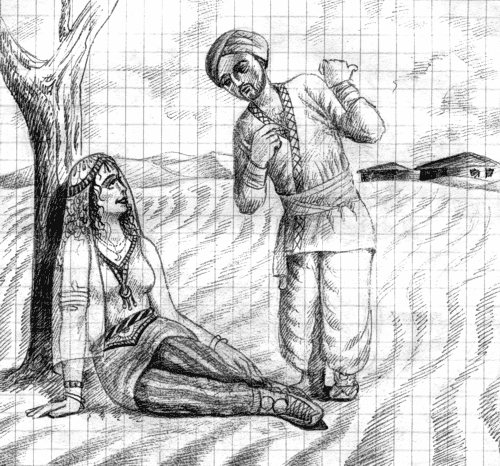
I'm looking for a Photoshop plug-in or any other image editing tool that would help removing a fixed pattern from scanned images, or reducing them to the point where they could be removed with brightness/contrast options.

I have some old ball-point pen drawings made in a checked math copybook. Most of the patterns are quite faint and they could be easily removed with brightness/contrast adjustments, but some of them cannot be removed so easily without heavily affecting the image quality.

If there are no such plug-ins or tools, maybe you could give me some advise on removing them manually. The pattern has a bluish tint, so I tried to use the color mask, but the result was nowhere near perfect. Any insights would be much appreciated.

Here's an example of my problem. It's in greyscale, but the actual images have slightly bluish patterns.
Reply

9 Comments

Johnny Driggers 01 Apr 2009

I don't have photoshop on this computer to check but I believe you could go to the "Select" menu and click "Color Range" and then click on the blue line to select it.

then you could cut it out or adjust the color without affecting the rest of the picture, you can hide the selection by hitting "control h" or "command h" or something like that so you don't see the marching ants and can better see what you are doing.

Rezo Kaishauri 01 Apr 2009

Thanks Johnny, I know that method, but the problem is, the lines are not solid, but blurry, which means there is a whole bunch of different shades in it. I'll have to manually expand color ranges with "add to sample" option in each image, which is very problematic, because they are well over 100. I need more automated solution here. Scripting won't help either -- the shades of blue vary from image to image.

L Anderson 11 Apr 2009

I know it might be tedious--hense your serach for a plug-in fix-it--but You've probably tried the wand-tool on high magnification?

Another idea would be in the scanning process itself--rather than scan in grayscale, scan in color instead and play with the *color* settings so you don't scan the blue values to begin with.--that is if the scanner can do this.

L Anderson 11 Apr 2009

I know it might be tedious--hense your serach for a plug-in fix-it--but You've probably tried the wand-tool on high magnification?

Another idea would be in the scanning process itself--rather than scan in grayscale, scan in color instead and play with the *color* settings so you don't scan the blue values to begin with.--that is if the scanner can do this.

L Anderson 11 Apr 2009

I know it might be tedious--hense your serach for a plug-in fix-it--but You've probably tried the wand-tool on high magnification?

Another idea would be in the scanning process itself--rather than scan in grayscale, scan in color instead and play with the *color* settings so you don't scan the blue values to begin with.--that is if the scanner can do this.

Rezo Kaishauri 20 Apr 2009

About the wand tool...

It's possible to select the blue grid with this tool, although this is really tedious. Color masking is a lot faster and more effective.

About the scanning process...

I scanned them all in color and processed with color mask -- desaturating and brightening to some extent. I changed the color mode to greyscale only after that.

My scanner is Epson Perfection 2580; it has some options for pre-scan color manipulations, but I never use them, preferring to do all the manipulations in a graphics editor. I'm pretty sure there is not much a scanner soft can do that Photoshop can't do -- although, I must admit, some things like descreening the printed image my scanner does better than any image editing software I've seen. I'll give it a chance -- thanks for suggestion.

Johnny Driggers 20 Apr 2009

if the blue is similar to non-repro blue, which it should be, it probably will not show up if you scan it as "black and white line" art or "black and white bitmap"

also in photo shop you could try this open up the hue/saturation box, under adjustments

from the drop box select cyan or blue

turn the saturation all the way down, and the lightness all the way up.

if it works you could record the process in actions to make it quicker

Rezo Kaishauri 23 Apr 2009

Line art or black-and-white scanning is no option -- it would effectively kill the greyscale gradations. This particular sample doesn't show much in this regard, but most of the images have quite subtle gradations.

As for the hue/saturation adjustments, it's really worth a try. Thanks for useful suggestion, Johnny!

Lisa Brewer 31 Jul 2009

THIS IS WHAT I DID:

In Adobe Photoshop

1. Under Image tab, select adjustments, curves 2. Once in curves, settings were RGB, input 61, output 53.

Any remaining background you could rid of manually in Paint.

Hope this helps you out.

Reply