20 November, 2009

Convert Photos to Line Art

In this brief tutorial we will look at how to easily convert a photograph into a black and white line drawing with just a few quick clicks.

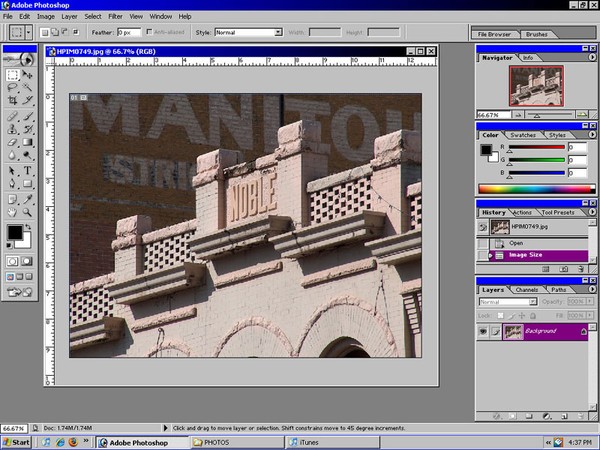
1-Open Photoshop. Choose the photo you want to convert to black and white line art. It is important that the photo a clean composition with good lines for best results - complex patterns tend to make for alot of "noise" in the picture that requires extra time to remove by hand.
Reply

14 Comments

Hinsel Scott 20 Nov 2009

2-In the menu at the top go to IMAGE and then ADJUSTMENTS and choose "Desaturate".

Hinsel Scott 20 Nov 2009

3-Now your image is black and white.

Hinsel Scott 20 Nov 2009

4-Make sure your foreground color is white and your background color is black. You will see these two blocks in your left toolbox. Click each box to set its color correctly.

Hinsel Scott 20 Nov 2009

5-In the menu at the top go to FILTER then SKETCH then click STAMP.

Hinsel Scott 20 Nov 2009

6-In the box that opens set the Smootheness to 0 to insure you get sharp clean lines. You can move the Light/Dark Balanace back and forth until you have selected just the portion of image you want.

*don't forget you can zoom in and out by clicking the + or - symbols below the image preview

Hinsel Scott 20 Nov 2009

7-As you can now see your photo has been converted to a black and white line drawing.

From here you can use your eraser or paintbruch/penil (pencil is best for matching sharp lines) to modify the image as you see fit.

Continue reading below for advanced editing steps...

Hinsel Scott 20 Nov 2009

8-In the Layers Panel - generally located bottom right - RIGHT-Click on your background layer and choose "Duplicate Layer".

Click OK when prompted.

Hinsel Scott 20 Nov 2009

9- Next, RIGHT-Click on the background layer again and choose "Delete Layer" ; click OK when prompted.

As you can see, you now have a unlocked duplicate layer of your background.

Hinsel Scott 20 Nov 2009

10-Make sure your foreground color is still white and your background color is black.

Then go to SELECT then Color Range.

Hinsel Scott 20 Nov 2009

11-The Color Range box will now appear. You can select the 'fuzziness' with the slider bar - essentially selecting how much of the white color you will be selecting / it's sharpness. For this type of application I usually set it fairly low...

Click OK.

You will now note your white is selected. Hit the delete key on your keyboard and see the result.

Hinsel Scott 20 Nov 2009

12- You have effectively removed the white from the picture, leaving just the black lines. You can go SELECT then Deselct to remove the selecting lines around the remaining lines.

From here you can copy and paste this onto any color or possibly convert it to vector. Or continue to what I did below...

Hinsel Scott 20 Nov 2009

13- Save your line work photo under another name with the "Save As" option in the FILE menu at the top. Then reopen your original photo, copy and paste it into the open copy of your line work photo - making sure to put the photo below the line work in the Layers Panel.

The end result is a very neat sort of comic-bookish image...but thats a whole other tutorial. :D

Feel free to visit this tutorial on my personal site at http://www.hinsel.com

james boyd 01 Dec 2009

You don't have to go to the trouble of duplicating the background layer. You can also just double-click on it to "unflatten" a background. A window will come up asking you to rename the layer. This effectively allows the layer to "float."

Also, have you tried the tracing feature in Adobe Illustrator? You can get some good results if you're careful and the art becomes vectorized after the tracing, allowing you to scale it without loss of quality.

But if you're stuck on Photoshop, you can achieve the same results you have here (after converting the file to grayscale) using brightness and contrast moves by playing with the sliders or even curves by pulling the far upper right point of the curve towards the left, making sure it stays along the top edge and then pulling the far left bottom point back to the right, towards the center, staying along the bottom edge. If the image becomes too choppy, you can then just slide the pints back and forth until the desired look is achieved.

Posterize works too, (sometimes) if the image is right, and you can get some cool color using this as well, if you try the filter before converting the image to grayscale.

In addition, you may want to examine the individual channels that make up the color image before you make the move to grayscale the way it is described here. Often, one channel will contain all the information you need to make a good black and white image work. If so, you can simply copy the channel and paste it into a new grayscale document. The act of copying it will automatically result in Photoshop creating a new window that is the right size, but you may have to set the new document to grayscale from RGB or CMYK before you paste the channel you have copied. The advantage to this is that sometimes, you get better contrast to begin with in your grayscale image.

If none of the channels have all the data you need, try the channel mixer. Convert the image to CMYK, then open the channel mixer. Channel mixer creates an image by taking the digital information from the individual channels and adding or subtracting that information from/to the channel you are currently working in. Getting a good grayscale image may be the result of adding some of the cyan channel back into the black channel, for example. Set all of the channels but the black channel to 0, then add the channel data from the CMY back into the black channel as needed.

This last one is a bit trickier, but if you can manage to get the gray areas of the image below a 50% black, then you can drop them by simply converting the image to a bitmap. The advantage to this is that you might want to experiment with the screen patterns the bitmap format offers, allowing for some nifty coarse dot or crosshatch patterns to be used. One of my favorite techniques is to create a gradation, then convert it to a bitmap, using a coarse dot pattern, say a 15 DPI or less, and get these cool art deco dots. These can then be carried over into other images and laid on top, or in the back of, other images for effect. The attached image is a gradation made using this technique.

As for me, when it comes to line art, there are a great number of ways to get this effect, but none is better or cleaner than simply using the image as a template in Illustrator and tracing the photo. Time consuming, but ultimately worth it for the best line art.

Hinsel Scott 01 Dec 2009

thanks for the comment james, some good extra pointers there. took a quick look at your portfolio - you do some really nice work!

i tried to keep this tutorial as simple as possible - i've noticed the blank stares i get when i start mentioning channel mixers and color modes. ; )

Reply