03 November, 2005

"SCREEN SNAPSHOTS" FOR MAC & PC

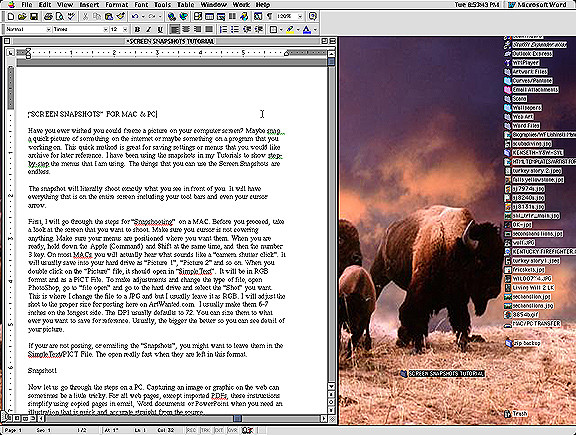
Have you ever wished you could freeze a picture on your computer screen? Maybe "snap" a quick picture of something on the internet or maybe something on a program that you working on. This quick method is great for saving settings or menus that you would like archive for later reference. I have been using the snapshots in my Tutorials to show step by step the menus that I am using. The things that you can use the "Screen Snapshots" for are endless.

The snapshot will literally shoot exactly what you see in front of you. It will have everything that is on the entire screen including your tool bars and even your cursor arrow.

Reply

8 Comments

WESTERN ARTWORK By Denny Karchner 03 Nov 2005

First, I will go through the steps for "Snapshooting" on a MAC. Before you proceed, take a look at the screen that you want to shoot. Make sure you cursor is not covering anything. Also make sure your menus are positioned where you want them. When you are ready, hold down Apple (Command) and Shift at the same time, and then hit the number 3 key. On most MACs you will actually hear what sounds like a "camera shutter click". It will usually save into your hard drive as "Picture 1", "Picture 2" and so on. When you double click on the "Picture" file, it should open in "SimpleText". It will be in RGB format and as a PICT File. To make adjustments and change the type of file, open PhotoShop, go to "file open" and go to the hard drive and select the "Shot" you want. This is where I change the file to a JPG and but I usually leave it as RGB. I will adjust the shot to the proper size for posting here on ArtWanted.com. I usually make them 6-8 inches on the longest side. The DPI usually defaults to 72. You can size them to what ever you want to save for reference. Usually, the bigger the better for reference shots so you can see detail of your picture.

If your are not posting, or emailing the "Snapshots", you might want to leave them in the SimpleText/PICT File. The open really fast when they are left in this format.

WESTERN ARTWORK By Denny Karchner 03 Nov 2005

Now let us go through the steps on a PC. Capturing an image or graphic on the web can sometimes be a little tricky. For all web pages, except imported PDFs, these instructions simplify using copied pages in email, Word documents or PowerPoint when you need an illustration that is quick and accurate straight from the source.

To begin, position the page you would like to copy with your scrollbar. Remember that the snapshot will be only what is actually visible on the screen even if the data continues further down the page. To capture the lower portion of the page, you will need to scroll down and take another "picture" and show them in sequence.

Next, hold down the "crtl" and the key on your keyboard that contains "Print Scrn SysRq" simultaneously. The "Print Scrn SysRq" key may vary from keyboard to keyboard.

Next, open a new page in Word or WordPerfect, go to "Edit" and select "Paste Special." An option menu will open. Usually, the document will default to "Bitmap" or "Device Independent Bitmap" automatically but your system may vary depending on the version used. Try the selections that contain "Bitmap" first. Next, hit OK and your image will paste into the screen as shown below. (Your snapshots can also be opened in programs like a PC version of PhotoShop or Corel Photo-Paint).

WESTERN ARTWORK By Denny Karchner 03 Nov 2005

For multiple page insertions, you may want to insert a blank line or a line of text to identify the sequence of your pasted screens. To save, go to "File" and "Save As" as you normally would. This is a great way to send photos of items on the web where you might not otherwise be able to copy and paste just the individual item. The object may be re-sized by clicking on the object and pulling the nodes at the corners. The ones on the top and sides will distort so unless you are trying to fit into a specific size, it is better to re-size only with the corners. To enlarge uniformly, hold down the "ctrl" button as you drag with your mouse. It takes a little practice but soon you will get the hang of it.

WESTERN ARTWORK By Denny Karchner 03 Nov 2005

Pretty simple stuff, right? OK now, "Everybody say Cheese"---Denny Karchner/Buffalo Graphics www.buffalographics.com

Sarah-Lynn Brown 05 Nov 2005

CHEESE

keith booth 14 Jan 2006

i use Fraps for my screen captures, and mpeg captures, all i do is press f10 and it captures the image and puts it into what ever file i set it to in the options. works great for me:)

WESTERN ARTWORK By Denny Karchner 13 Jan 2009

Hi Chris. Thanks for the tip!! Sounds easy enough.--Denny ;{

Sarah-Lynn Brown 06 May 2009

OMG! this is still up... If you click on the image of Clint Eastwood next to Denny you can see the gunfighter shoot the Artist.

Reply